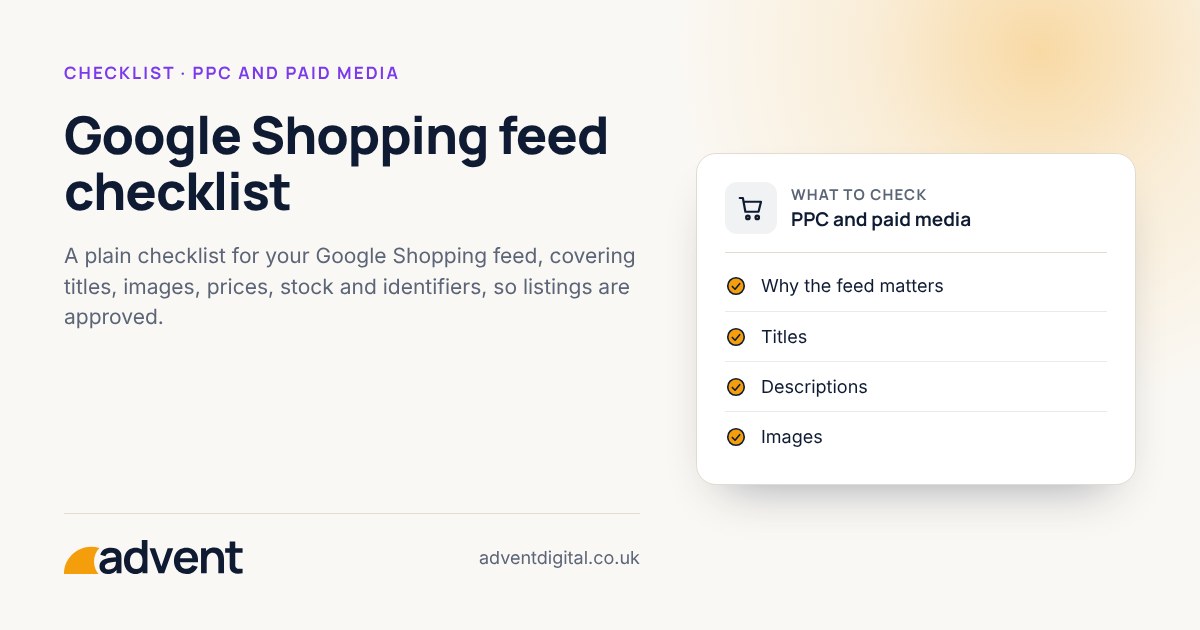
A good Google Shopping feed has accurate prices and stock, titles written the way shoppers search, clear images and the right product identifiers on every item. Work through the checklist below before you spend on adverts, then check it again each month. This article is part of our Google Ads and Shopping for Shopify stores guide.
Why the feed matters
A Shopping listing has no advert text. Google builds it from your feed, so the feed does the work of the advert. Weak data means fewer showings, refused products, or clicks from people who wanted something else.
These items were checked against Google’s product data specification in October 2026. Google changes it from time to time.
Titles
- The product type or name is near the start.
- Brand, colour, size, material or model are included where shoppers search for them.
- No capital-letter shouting, promotional wording or delivery claims.
- Each title is different from the others, including variants.
Descriptions
- Written in plain sentences that describe the real product.
- Includes details people ask about: materials, dimensions, what is in the box.
- No claims you cannot back up.
Images
- A clear main photograph, ideally on a plain background.
- The product fills most of the frame.
- No watermarks, added text or placeholder images.
- Variant images match the variant they are listed under.
Google asks for clear product photos with no watermarks, promotional text or borders.
Price and stock
- The price in the feed matches the price on the product page, including any sale price.
- Stock status matches your store.
- Currency is correct for the country you are selling to.
- Shipping and tax settings in Merchant Center match what a customer sees at checkout.
Mismatches are one of the commonest reasons for refused products, and they cost trust as well as clicks.
Product identifiers and categories
- Brand is set on every product.
- Barcodes (GTINs) are added where the product has one.
- Items that genuinely have no barcode, such as handmade goods, are marked correctly.
- Each product sits in a sensible Google product category.
Google requires a GTIN for any product that has one, and a brand for most products. Shopify’s Google & YouTube app sends the barcode field as the GTIN, so fill it in.
Variants and groups
- Variants such as size and colour are grouped so they appear as one product with options.
- Each variant has its own price, stock and image where they differ.
Checks to repeat each month
- Look at the diagnostics in Merchant Center for warnings and refused products.
- Open a handful of live listings and compare them with your product pages.
- Check that new products have appeared in the feed with complete data.
- Compare product clicks and orders to find items that attract visits but do not sell.
From experience
A poorly optimised feed leads to poor performance. We have seen countless feeds set up and then forgotten, and now that products can also appear in Google’s free listings, many brands are leaving money on the table.
Where to get help
Our Google Shopping service starts with a review of your feed and what is holding your listings back.
Related services that often go with it:
- Google Ads, for search campaigns that sit beside Shopping.
- SEO for ecommerce, because good product titles and descriptions help in ordinary search too.
- Dynamic creative, for adverts built from your product data.
- GA4 setup and audits, so you can see which products pay their way.
You may also like How to set a Google Ads budget for a small store.