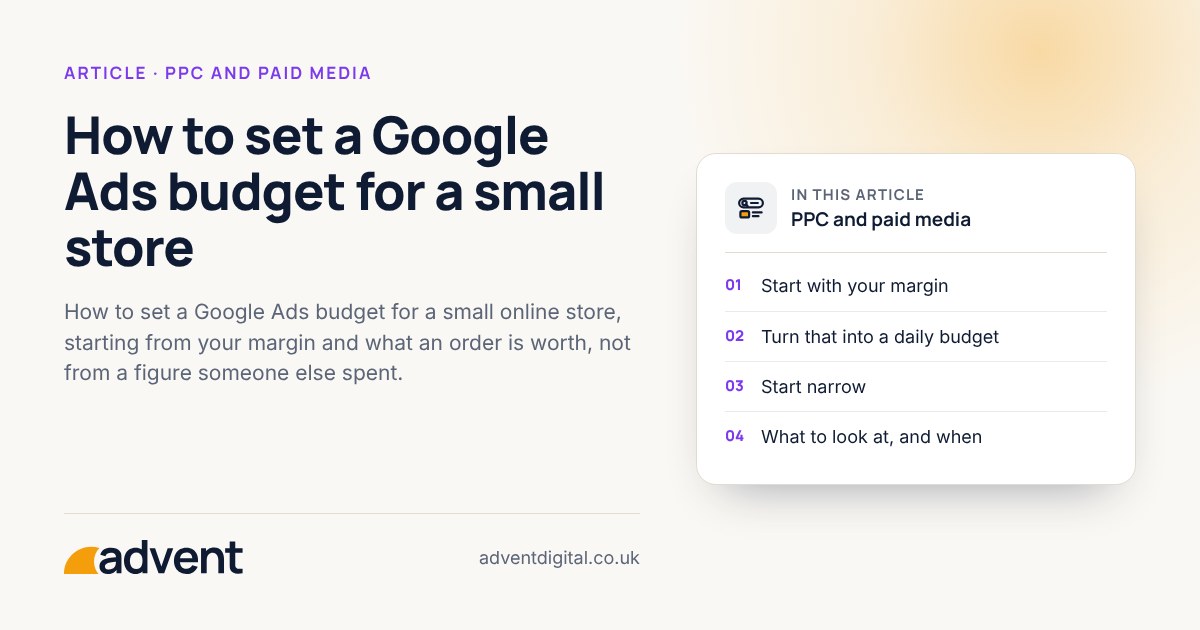
Set your Google Ads budget by starting with what you can afford to pay for one order, then give the campaign enough daily room to collect a useful number of clicks and orders. There is no standard figure that suits every store. This article is part of our Google Ads and Shopping for Shopify stores guide.
Start with your margin
Before you pick a daily amount, work out what each order leaves you after the cost of the goods, delivery, payment fees and returns.
- Take an average order value.
- Take away the cost of the goods, delivery, fees and a sensible allowance for returns.
- What is left is the most you could spend to win that order and break even.
Spend less than that, and the order makes a profit. Spend more, and you lose money on it. Your target sits somewhere below the break-even figure, and only you know how much profit you need.
Turn that into a daily budget
Once you know what you can pay for an order, you can work backwards.
- Decide how many orders you would like to test over a few weeks.
- Multiply by what you can afford to pay per order.
- Divide by the number of days.
That gives a rough starting budget. If the figure is more than you are comfortable losing, reduce the number of orders you test. Do not simply spend less on the same plan, because a budget too small to collect any data teaches you nothing.
Google Ads can spend up to twice your daily budget on a busy day, but it won’t charge more than about 30.4 times the daily budget in a month.
Start narrow
A small budget goes further when it is not spread thinly.
- Begin with your best-selling or best-margin products.
- Use one or two campaigns, not six.
- Keep your location, product range and message tight.
- Add more only when the first campaign has paid its way.
What to look at, and when
- Give a campaign several weeks before judging it, and enough orders to show a pattern.
- Compare revenue with profit, not just advert cost.
- Watch which products and search phrases earn their keep.
- Change one thing at a time, so you know what made the difference.
Your analytics and Google Ads will rarely agree exactly. See GA4 setup and audits for why that matters and how to trust your numbers.
When to raise or lower the budget
- Raise it when the campaign is profitable and is limited by budget, rather than by the number of searches available. Google Ads shows “Limited by budget” in the campaign’s status column when that’s the case.
- Hold it when results are mixed and you do not yet understand why.
- Lower or pause it when orders are not covering their cost and you cannot find a fixable cause.
Before adding money, check that the page people land on is doing its job. See Landing page optimisation.
From experience
We often see Google Ads accounts running on full automation, with recommendations applied that burn through ad spend. The key is to make the budget stretch, because waste on one campaign means lost conversions elsewhere.
Where to get help
Our Google Ads service can help you set up a campaign and budget based on your own margins, and be honest about what a small budget can do.
Related services that often go with it:
- Google Shopping, for product listings built from your feed.
- Landing page optimisation, so the clicks you pay for turn into orders.
- GA4 setup and audits, so you know which adverts led to a sale.
You may also like Is Microsoft Ads worth it for a Shopify store?