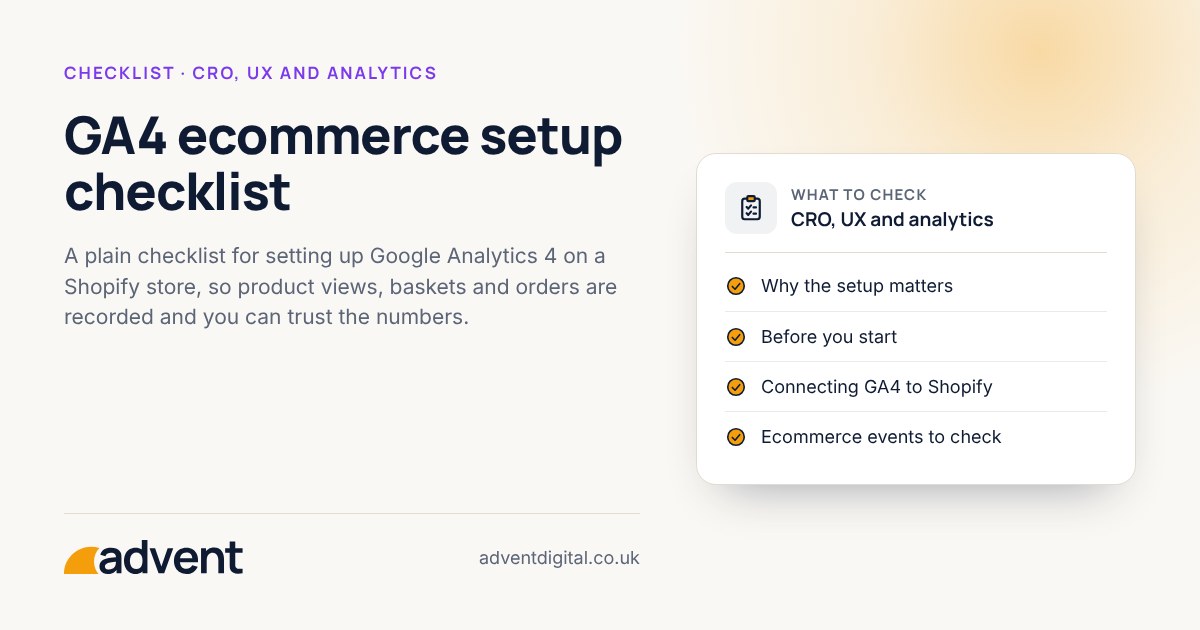
A reliable Google Analytics 4 (GA4) setup records the whole buying journey: product views, adds to basket, checkout starts and completed orders, with the right values attached. Work through the checklist below, then compare GA4’s orders with your Shopify admin. This article is part of our Ecommerce CRO: the complete guide.
Why the setup matters
Every conversion decision rests on these numbers. If purchases are missed or counted twice, you can end up fixing the wrong page or judging an advert unfairly. Checking the setup first is cheap and avoids a lot of wasted effort.
GA4 and Shopify’s analytics connection change from time to time. This checklist was checked against both in October 2026.
Before you start
- You have admin access to the GA4 property and to your Shopify store.
- You know which GA4 property and data stream belong to the live shop, not a test or an old site.
- You have written down what counts as a conversion for the business, usually a completed order.
Connecting GA4 to Shopify
- GA4 is installed once only. Duplicate installs, for example one in the theme and one through an app, are a common cause of doubled counts.
- The connection method you use is the one currently recommended by Shopify and Google. For most stores that’s Shopify’s Google & YouTube app.
- Your own visits and your team’s visits are excluded, where practical.
- Test orders are not counted as real sales.
Ecommerce events to check
Check that each step of the journey is recorded when you walk through the shop yourself.
- Product or item views
- Adds to basket
- Basket views, if you use a basket page
- Checkout started
- Shipping and payment details entered, where recorded
- Purchase completed
The recommended events are view_item, view_item_list, add_to_cart, begin_checkout, add_payment_info and purchase. Each needs items, value and currency, and purchase also needs a unique transaction_id.
Order values and currency
- Each purchase carries a transaction ID, so the same order cannot be counted twice.
- The currency is correct, including on any international stores.
- Revenue is reported consistently, with a clear decision on whether it includes delivery and tax.
- Refunds and cancellations are handled in a way you understand, even if they are not tracked.
Consent and cookies
- Your cookie banner works and GA4 respects the choice made.
- You know how much data you lose when visitors decline, and you allow for it when reading reports.
For visitors in the UK and EEA, Google requires consent mode, including its two signals for ad data, to use its advertising features. UK law has allowed cookies used only for site statistics without asking first since February 2026, as long as visitors are told and can switch them off.
Linking other tools
- GA4 is linked to Google Ads, if you advertise there. See Google Ads.
- Conversions you want to use for bidding are marked clearly, and only the ones that matter.
- Other platforms, such as email tools, use consistent campaign tags so traffic is attributed properly.
Compare with Shopify
Run this check once the setup is done, then monthly.
- Choose a recent full week.
- Compare the number of orders and total revenue in GA4 with Shopify.
- Expect small differences. Write down the size of the gap.
- If the gap is large, look for duplicate installs, blocked scripts, missed payment-return pages or consent effects.
From experience
Clean data has never been harder to achieve, but the right set-up gets you much closer. GA4 plays a major part in capturing your store’s performance and making sense of it.
Where to get help
If you would like an expert to check your tracking, our GA4 setup and audits service reviews what is recorded, what is missing and how far you can trust it.
Related services that often go with it:
- Server-side tracking, for more resilient data collection once the basics are sound.
- Conversion funnel optimisation, to act on what the numbers show.
- Google Ads, so advertising conversions match what your shop actually sold.